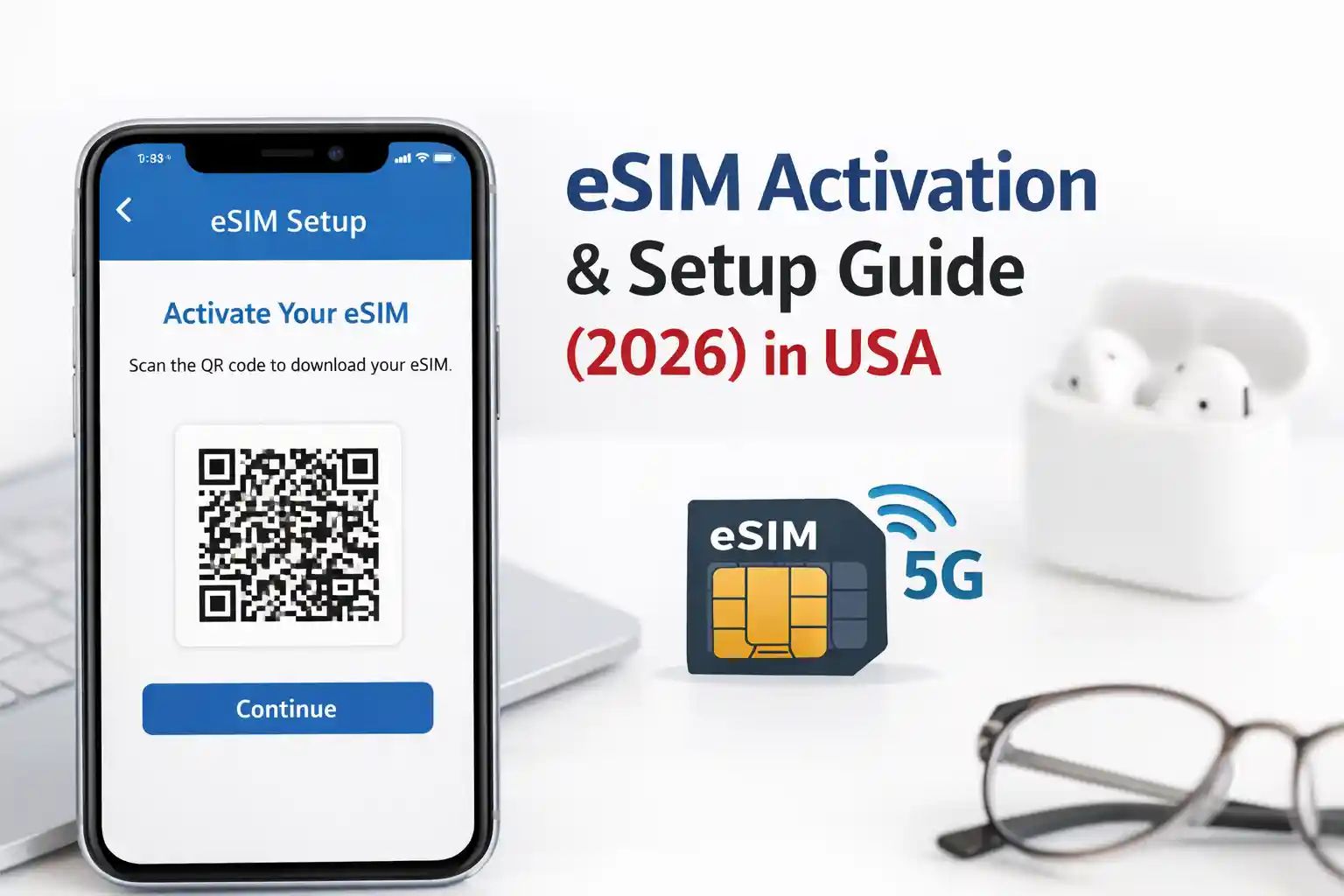
The short version: buy the plan while you have Wi-Fi, install it close to departure, make it your mobile-data line when you arrive, turn on data roaming if the plan instructions say to, and turn off automatic data switching. Most Sim Local travel eSIMs should not be judged until you are in the destination country.
If you still need a plan, ESIMADVICE gives 10% off eligible Sim Local eSIMs. Get the code and plan advice on our Sim Local coupon homepage.
Before you install: five quick checks
- Your phone supports eSIM. Check the phone settings or Sim Local's compatibility checker. Regional versions and carrier locks can matter.
- Your phone is unlocked. A carrier-locked phone may reject a travel eSIM.
- You have stable Wi-Fi. The eSIM profile needs a real download.
- You know the activation rule. Many plans connect only at the destination.
- You have saved the email. It may contain the QR code or manual activation details.
Do not delete your home SIM before travelling. Keeping it active for banking codes can be useful, but you should stop it from using mobile data if your home carrier charges for roaming.

Install a Sim Local eSIM on iPhone
The precise menu names change slightly by iOS version, but the flow is familiar.
- Open the Sim Local app or confirmation email and find the QR code.
- Go to Settings, then Mobile Service or Cellular.
- Choose Add eSIM.
- Scan the QR code, or select the image if you saved it as a screenshot.
- Follow the prompts to add the plan.
- Give it a clear label such as "Japan Travel" or "Europe eSIM".
After it installs, do not immediately panic if there is no signal. That can be normal before arrival. At the destination, set the new line under Mobile Data, turn data roaming on for that travel line when required, and turn Allow Cellular Data Switching off.
Install a Sim Local eSIM on Android
Android menu names differ by brand, but the path is usually:
- Open Settings.
- Go to Network & internet, Connections, or SIM manager.
- Tap Add eSIM or Add mobile plan.
- Scan the QR code from the confirmation email/app, or use the manual activation details if provided.
- Keep the screen open while it downloads.
- Name the plan clearly.
On Pixel-style Android phones, Sim Local's guide points to Settings, Network & internet, SIMs and Add eSIM. On Samsung, the manual route may be Settings, Connections, SIM manager, Add eSIM and Enter activation code. The confirmation email or app should supply the relevant information.
👉 Choose a Sim Local eSIMTurn on the right settings when you arrive
Installation adds the profile. Activation is what makes it useful on the trip.
1. Set mobile data to the Sim Local eSIM
Your phone can store more than one SIM. Tell it which one should carry mobile data. Choose the new travel line.
2. Turn on data roaming for the travel eSIM
This surprises people because they are trying to avoid roaming charges. A travel eSIM often needs the data roaming toggle on to connect through its partner network. Turn it on only for the travel eSIM and follow the plan instructions.
3. Turn automatic data switching off
This protects your home SIM. If automatic switching is on, the phone may quietly use data from your home line when the travel eSIM has a weak moment. That can produce a nasty roaming bill.
4. Keep calls and texts separate if needed
If your plan includes calls and SMS, select the eSIM for those services as well. If it is data-only, use data calling apps or keep your home line for calls while carefully controlling roaming.
When will a Sim Local eSIM activate?
Many plans only connect once you are in the supported destination. Sim Local's activation guide explicitly notes this. Install close to travel, then test after you land and have set the data line and roaming toggle correctly.
If you install very early, you risk confusing the validity clock on plans that activate on installation or first connection. Read your specific plan details. When in doubt, install a day before departure rather than a week before.
What if the QR code does not scan?
- Save a screenshot of the QR code.
- Use the phone's option to add an eSIM from photos.
- Check the Sim Local app under My eSIM.
- Use manual activation details if your confirmation provides them.
- Contact support before repeatedly deleting and re-adding profiles.
Common setup mistakes
- No Wi-Fi during download: the profile cannot finish installing.
- Data left on home SIM: the travel plan is installed but never used.
- Data roaming switched off on the eSIM: the plan may show no service.
- Automatic data switching left on: home roaming charges become possible.
- Trying before arrival: some plans cannot connect until the destination.
- Deleting the eSIM too quickly: reinstalling can be harder than fixing settings.
If you hit any of these, use our Sim Local eSIM not working guide. It has a practical decision tree for iPhone and Android. Not sure your handset qualifies at all? Check our compatible devices guide first.
Need a plan first?
Choose your destination, check data/days/network and then use ESIMADVICE for 10% off eligible plans. If you are unsure which plan you need, start with best Sim Local eSIM plans.
Setup FAQs
A pre-flight test that takes two minutes
Before boarding, make sure the eSIM appears in your SIM settings and that the QR code/confirmation email is saved. Do not worry if it has no service at home. The useful test is whether the profile has downloaded cleanly and you know where the data-line controls live.
Take a screenshot of:
- the plan label in your SIM settings;
- the order confirmation;
- the support email/WhatsApp route;
- the current plan's activation wording.
When to contact support
Contact Sim Local after you have confirmed the device is compatible, the eSIM is selected for data, data roaming is enabled where required, and you are in the destination. Send the order number, purchase email, destination, phone model, screenshots of the mobile-data settings and a short description of what you see.
For a refund boundary, see our Sim Local refund-policy guide. An unactivated eSIM and an eSIM that failed for a technical reason are not the same situation.
Setup checklist to copy into your notes app
- phone unlocked and eSIM compatible;
- confirmation email and QR code saved;
- eSIM profile downloaded on Wi-Fi;
- new line labelled clearly;
- travel eSIM selected for mobile data on arrival;
- data roaming enabled on the travel line if required;
- automatic data switching disabled;
- home-SIM roaming rules understood;
- support contact and order number saved.
Final setup reminder
Set the mobile-data line, enable the required roaming toggle, disable automatic switching, and wait until you are at the destination. Those four small steps avoid most "my eSIM does not work" panics.
Sources